Connect With Us

This is default featured slide 1 title

Go to Blogger edit html and find these sentences.Now replace these sentences with your own descriptions.

This is default featured slide 2 title

Go to Blogger edit html and find these sentences.Now replace these sentences with your own descriptions.

This is default featured slide 3 title

Go to Blogger edit html and find these sentences.Now replace these sentences with your own descriptions.

This is default featured slide 4 title

Go to Blogger edit html and find these sentences.Now replace these sentences with your own descriptions.

This is default featured slide 5 title

Go to Blogger edit html and find these sentences.Now replace these sentences with your own descriptions.

Showing posts with label PC TRICKS. Show all posts

Sunday, 7 February 2016

How To Download Instagram For PC/Laptop – 2016

Methods To  Use Instagram On PC/Laptop.

#Method 1:- Download Pixta

1. Visit the site and Download Pixta app
2. After it click on downloaded file it will open Pokki Window installer click on next and complete download.
3. Wait and complete downloading and installation.

4. After completing the downloading and installation click on the login button as you see in the image. Fill your Instagram Username & Password and enjoy it.

Method 2nd:- Webstagram


1. Visit the site  Webstagram. Click on Login.
2. After it, will show you dialogue box and ask you for permission then click on Authorize and proceed further. Fill your Username & Password and enjoy Instagram.

Method 3:- Bluestacks

1. Download Bluestacks emulator for your PC/Laptop and install it.
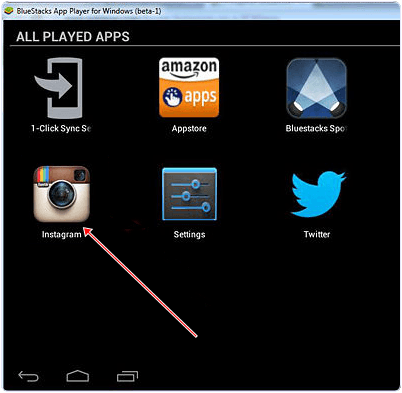
2. Click on search box in bluestacks and find Instagram.
3. Click on install option it will install Instagram in bluetacks emulator then simply open it put your Username & Password and open your profile.

Method 4th:- Instagram’s Website

1. Go and Visit Instagram’s official website. 
2. Click on Login and fill your Instagram Username/Password and continue.
We have listed out few working methods and i hope that all will successfully works for you.
In case you have any issue please leave your precious comment. We will discuss about it.
Share:

How To Use Pendrive As Ram In Windows xp 7 8 10 – 2016

Method 1:- Virtual Ram Concept For Windows XP, 7 and 8

  1. First of all Insert Your Pen Drive.
  2. Then open “My computer” and Right click >> Then open “Properties”.
  3. Now Properties window will appear, then click on “Advanced system settings” from left side.
  4. Then in “Advanced” Tab click on “Settings” Button appear in “Performance tab”.
  5. Again new window will appear then click on “Advanced” Tab.
  6. In Advanced Tab there is an option of  “Virtual Memory box”, Then click on “Change Button”.


Process of Increasing Virtual Ram
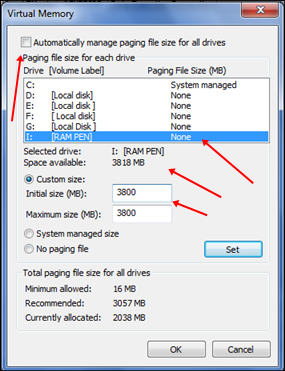
  • After click Change Button “Virtual settings” will appear.
  • Now unchecked the box of  “Automatically Manage Page size feature”.
  • Then in Custom  size Add Your Pen Drive current same in below format.
Note:- If Your Pen Drive is of Size 4Gb then always add 10Mb less from current available size. As i am using pen drive of size 4Gb and current space available is 3700 Mb then use 3690 minimum approx or remove more as you can because it better of device safety.
  • Now Add same “Value” in both boxes and click on Apply button.
  • Restart Your PC or Laptop and Now pen drive work as “Virtual Ram”.
Important:- If you face problem in above method then can also follow below method which is easy to perform and work on Window 7, 8

Method 2 :- Increase Ram Using ReadyBoost In Windows 7, 8, 10

  • Firstly Insert your “Pen Drive” >> Now Right click on your pen drive.
  • Open “Properties” >> Then “ReadyBoost” Tab.

  •  Then switch to “Use this device” and reduce your current memory space. If your current device place is 3700MB then reduce it with approx 200-300MB.
  • Then click on Apply button and all Done.
  • In case if you want to change back your pen drive to normal then switch it back Don’t use device in Readyboost tab.

Important Recommendations:-

  • Always Safely Eject Your Pen Drive. Direct remove removal may leads to device damage.
  • In Virtual Memory method If you want to convert back your Pen into Normal Then Again open Virtual Settings And Remove custom memory value and choose Default settings by checking “Automatically Manage Paging Size”.
  • In ReadyBoost method don’t forget to revert back to normal or otherwise open your pen drive and delete Readyboost file from your pen drive.
I Hope You enjoy both method Virtual Ram method and Readyboost method and find them helpful and knowledgeable.
If you know any better method for Increasing ram must share your ideas in below comments.

Share:

Top 7 Best USB Encryption Software – 2016

 Pendrive are devices which offer large data storage capacity and have longer life than Disks. USB drives are used to store and transfer data between computers. USB drives are also used for software installation like Operating system because it provide fast processing speed as compared to CD’s and DVD’s. Even their multiple functionalities of pendrive which are useful. Like we can also be used them to increase our system RAM Capacity by using Pen drive as Ram.In Some situations we need to keep our data  secure from other users. Then only possible ways we have are byhiding files and folders or by using password. But the more secure ways in both method is to protect pendrive with password. So that even we misplaced our USB device no one can access or use our valuable data. So their are many pendrive password protection software some are free and rest others are paid. So today here in this topic we are going to listed out all useful and working USB encryption software for PC. Which help to protect USB data in more secure way.


Best USB Encryption Software’s

1. USB Flash Security

USB flash Security is one of most commonly used tool to encrypt USB drives. It provide services for free upto 4GB capacity drives. It is available for all Windows versions. This tool allow us to  use a password  to encrypt and decrypt the drive. After each time we insert the drive you have to use the password to access the files. It is light weight tool and used 256 bit encryption.

2. Secure Stick

Secure Stick is another freeware USB encryption tool that provide the same USB encryption functionality as USB Flash Security but it can encrypt pendrives more than 4GB capacity. It does not need administrator permission to run that is it can run on every user account. It is compatible with Windows all versions as well as 64 bit version. It does not need installation and is light weight software.

3. Cryptainer LE

Cryptainer LE is another encryption tool that works not only on USB drives but also on hard disk and CD Rom’s. It Uses 448 bit encryption algorithm to encrypt data. It create 100 MB partitions in which we drag the files which we need to encrypt. It has one unique feature that allows users to send encrypted files via E-mail so that security transfers will no longer be a reason to worry.

4. True Crypt

True Crypt is an open Source data device encryption tool that is very efficient, time saving tool. It can encrypt  the hard drive partition even after window is installing it. True Crypt  have a number of encryption algorithms. once we have applied the encryption procedure that is required in the first place, all further data transferred to or from a chosen drive is automatically encrypted. I preferred to use this tool if you want more security.

5. DiskCryptor

DiskCryptor is another open source storage device encryption tool that can encrypt USB flash drives, hard disk, CD Rom drives. It can support both FAT and NTFS file system. It uses AES, Twofish, Serpert algorithms to encrypt your drives. To encrypt a drive we have to choose a password of our choice. We can also change password. It encrypt all volume of USB, we can’t select volume to encrypt.

6. Remora USB Disk Guard

Remora USB Disk Guard is freeware commonly used USB encryption tool. It uses 128 bit encryption technique to encrypt data. We can easily encrypt files, folder with Remora USB disk Guard by using a user name and password to use the encrypted USB. It also provide option to encrypt a specific file and folder instead of all USB drive.

7. Free USB Security

Free USB Security is free USB encryption tool used to encrypt the drive by using a password provided by us. It install a exe file on our drive and hide the content of our drive that is file and folders. When we execute the file it ask for the password to encrypt the drive. It can encrypt the drive having capacity greater than 4GB.
So these some best usb encryption software which you can download and use to protection your pendrive with password easily. I hope you like them and don’t forget to share it with other. Keep Sharing Stay Safe :)
Share:

Ads

home page
Ads

copyright by Tech Buddy . Powered by Blogger.

Popular Posts

Tech Buddy

Label Cloud

Blogger templates